Set up the HubSpot integration
This guide covers installing iCustomer from the HubSpot Marketplace, connecting your HubSpot account, and how to disconnect or uninstall.
1. What the app does
iCustomer Growth Brain connects to HubSpot and works on the contacts you already have. It brings your contacts and companies into iCustomer, scores every contact for fit and intent, and writes those scores back to HubSpot as properties so your team can build lists, views and workflows on them.
- Build and score audiences from your HubSpot contacts and companies.
- Push a HubSpot list to LinkedIn, Meta, Reddit and Google and keep each audience in sync.
- Read your HubSpot deals to see which audiences moved pipeline.
- Stay in control. iCustomer creates or updates contacts and companies only when you send a list or approve a change. Scores save to iCustomer's own properties.
2. Install from the Marketplace
You need a HubSpot admin seat and permission to authorize a connected app.
- In HubSpot, open the App Marketplace and search for iCustomer.
- Open the iCustomer listing and select Install app.
- Choose the HubSpot account you want to connect.
- If you are not signed in to iCustomer, you land on the iCustomer sign-in page. Sign in or create an account to continue.
3. Connect a HubSpot account
If you started from the Marketplace, the install already begins this flow. You can also connect from inside iCustomer.
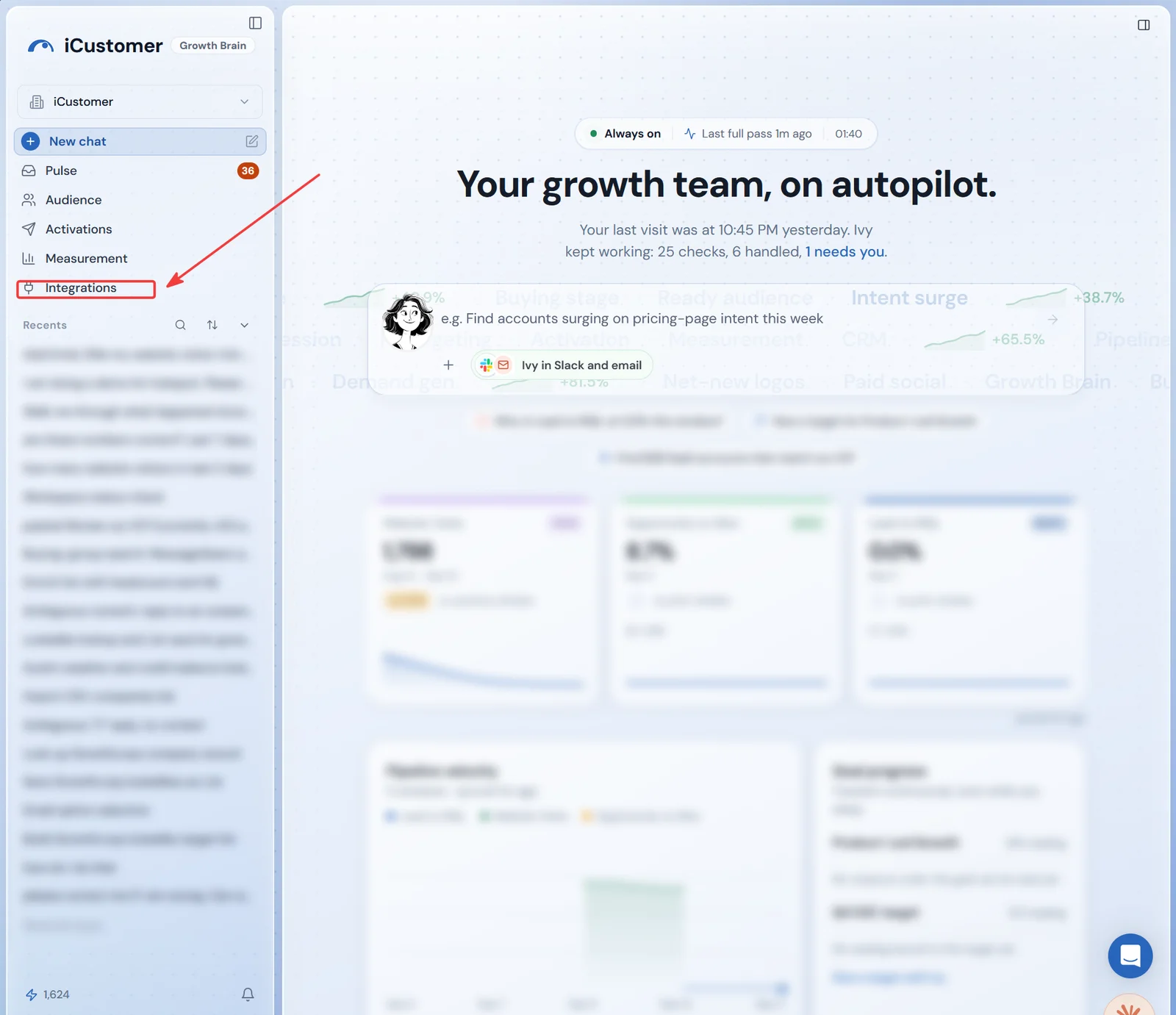
Step 1. Open Integrations
In iCustomer, go to the left nav, then Integrations.
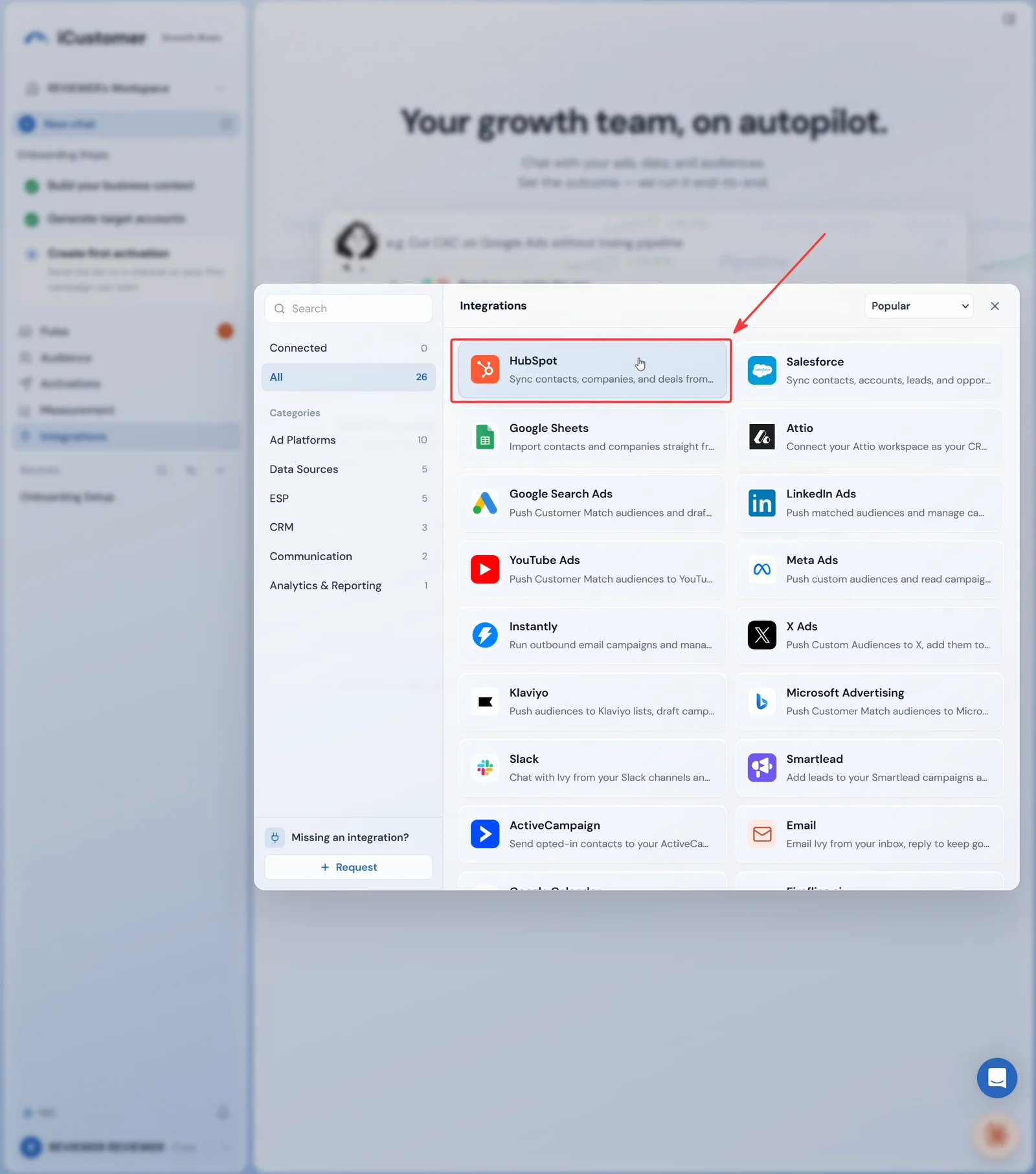
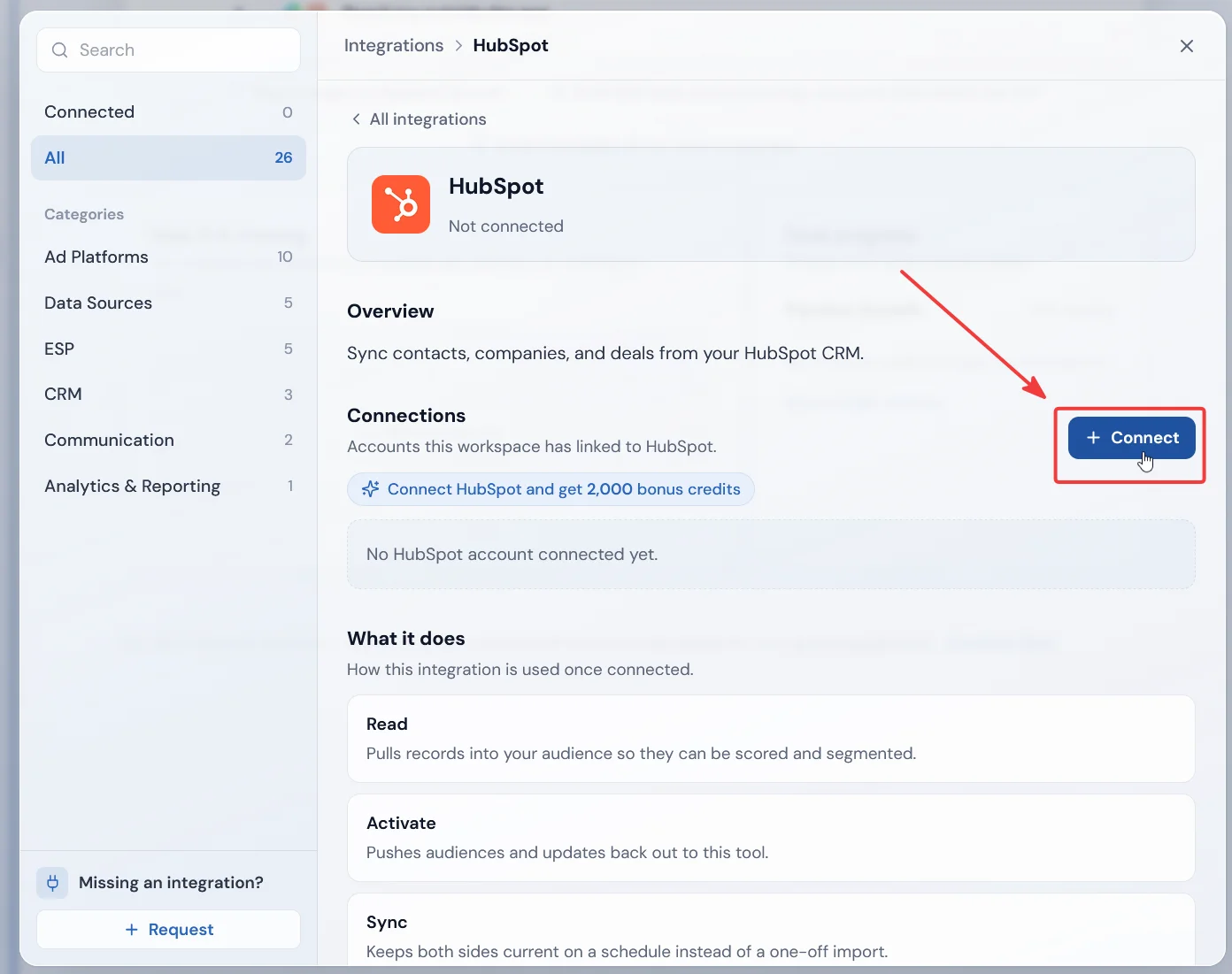
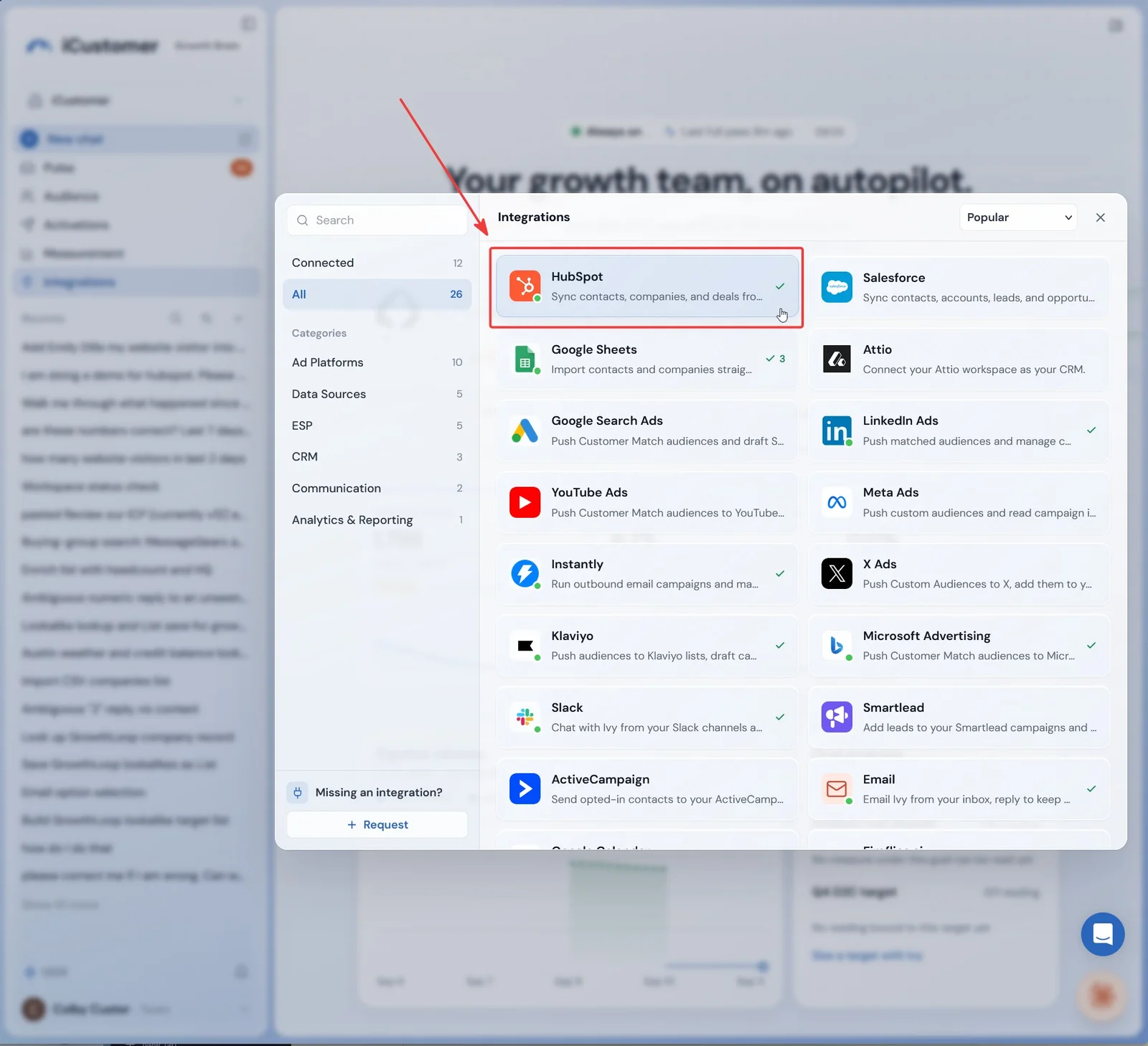
Step 2. Select Connect on HubSpot
Find HubSpot in the list and select Connect.
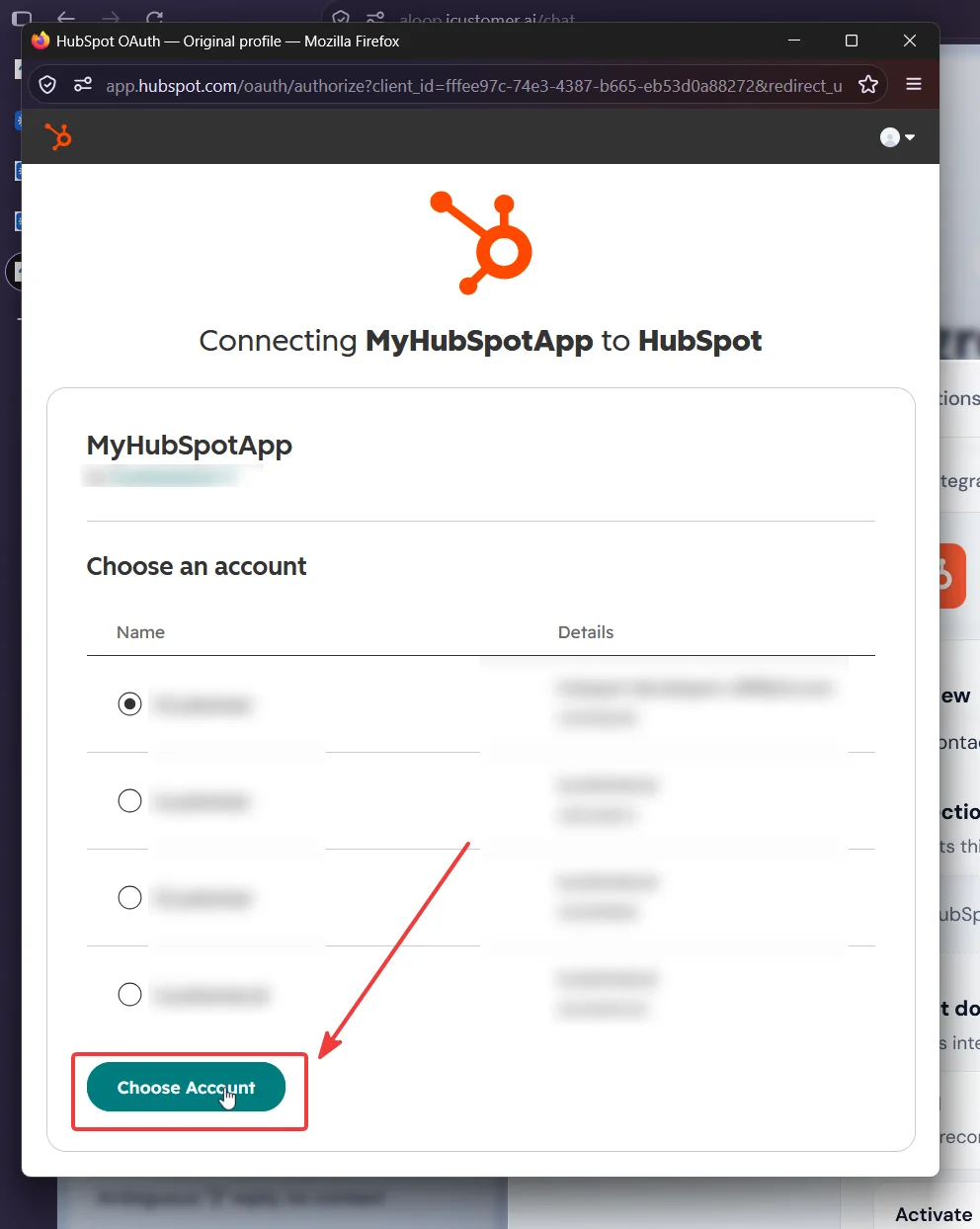
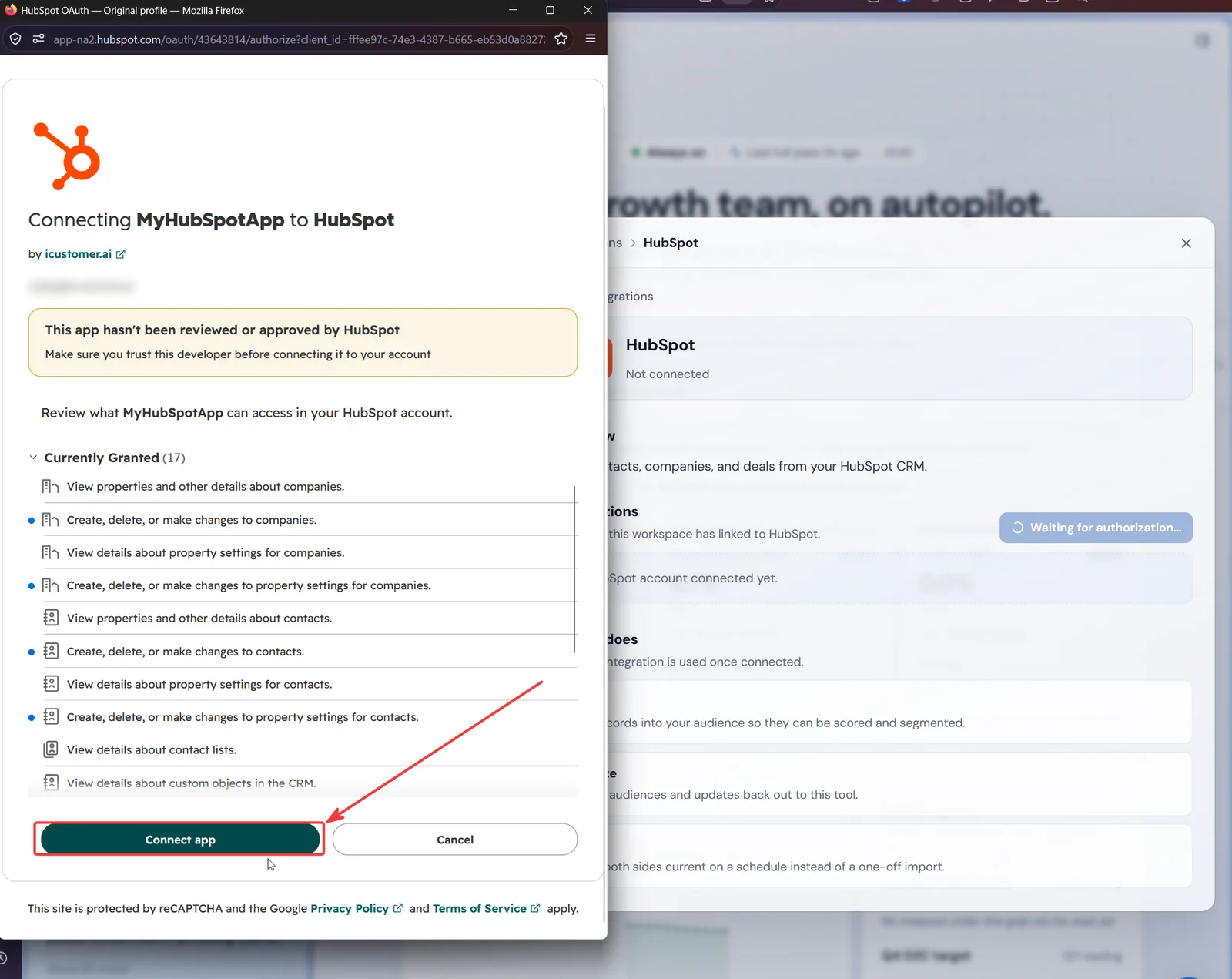
Step 3. Approve the permissions in HubSpot
Choose the HubSpot account to connect, review the permissions iCustomer requests, then approve.
Step 4. Confirm the connection
Confirm HubSpot shows as connected under Integrations.
4. Configuration
iCustomer creates its own properties for the score and ID. Blank values never overwrite your data.
5. Usage
Score every HubSpot contact
Fit and intent scores appear on every HubSpot contact and refresh as new data arrives. Scores save as properties you can use in lists, views and workflows.
See buying signals in iCustomer
Intent surges and engagement show beside every HubSpot contact and company in iCustomer. Each signal shows its source, so your team knows why it fired and what to do.
Keep every ad channel in sync
Push a HubSpot list to LinkedIn, Meta, Reddit and Google in one flow. Each ad audience stays matched, formatted and current as your list changes. iCustomer reads your lists and never creates or edits them.
Measure pipeline from HubSpot deals
iCustomer reads your HubSpot deals and stages to show which audiences and campaigns moved pipeline. Results are shown in iCustomer, so you can report on them next to your pipeline.
6. Disconnecting
Disconnecting stops iCustomer from syncing with your HubSpot account. Data that iCustomer already imported is kept. iCustomer does not revoke the HubSpot access token when you disconnect. To revoke access, uninstall the app in HubSpot (section 7).
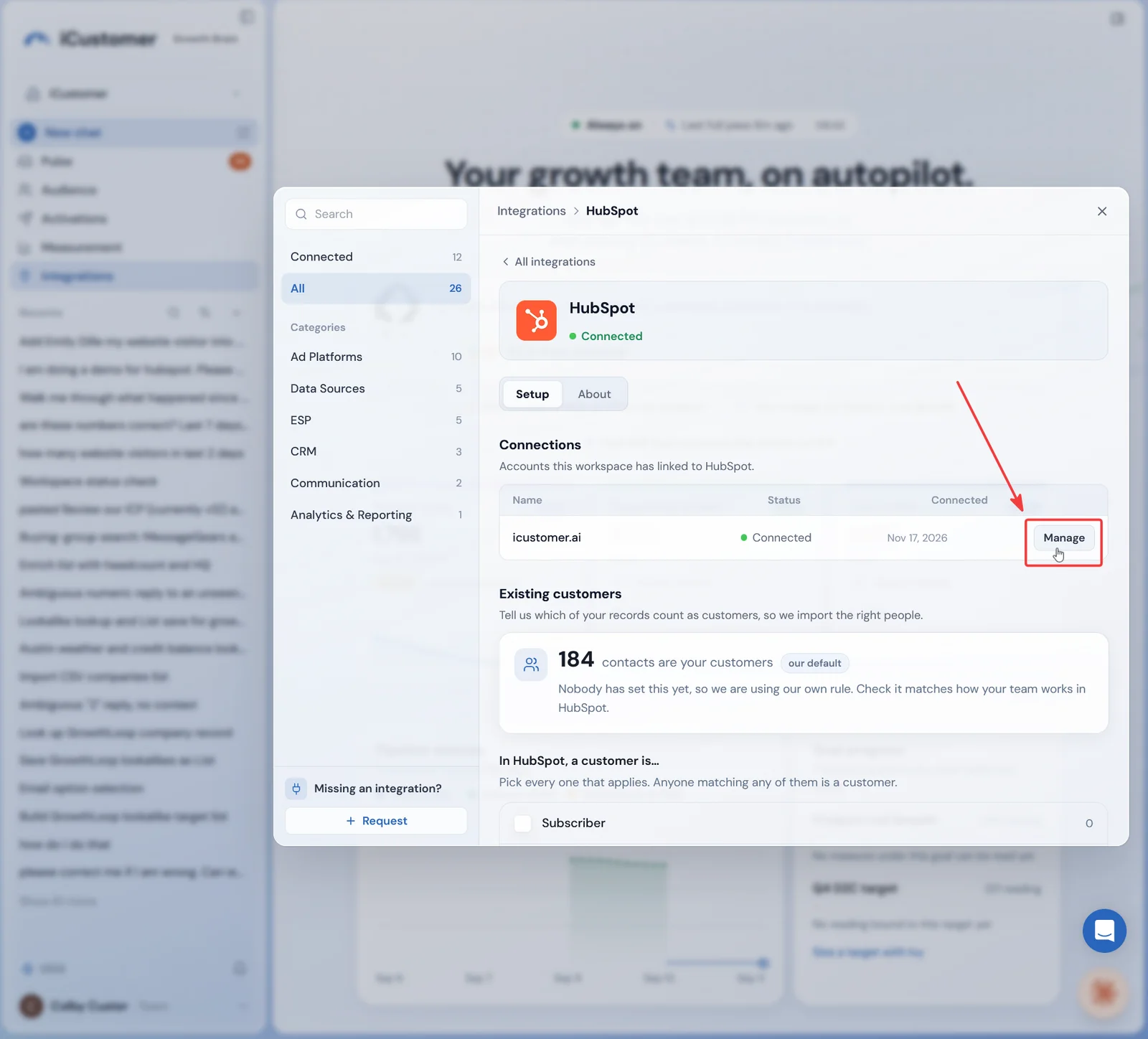
Step 1. Open the HubSpot integration
In iCustomer, open the left nav, go to Integrations, then HubSpot, then Manage.
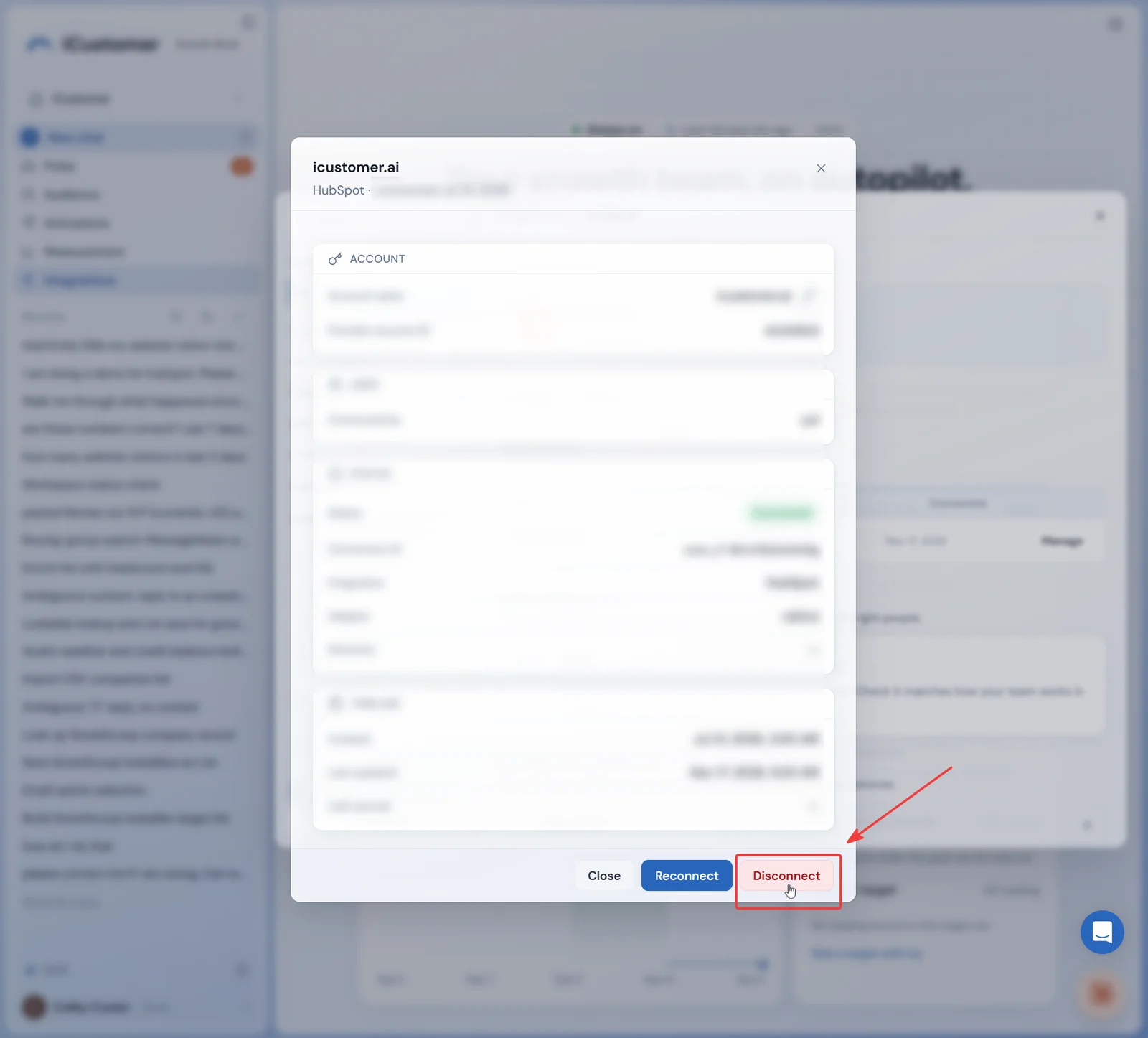
Step 2. Disconnect
Select Disconnect and confirm.
7. Uninstalling
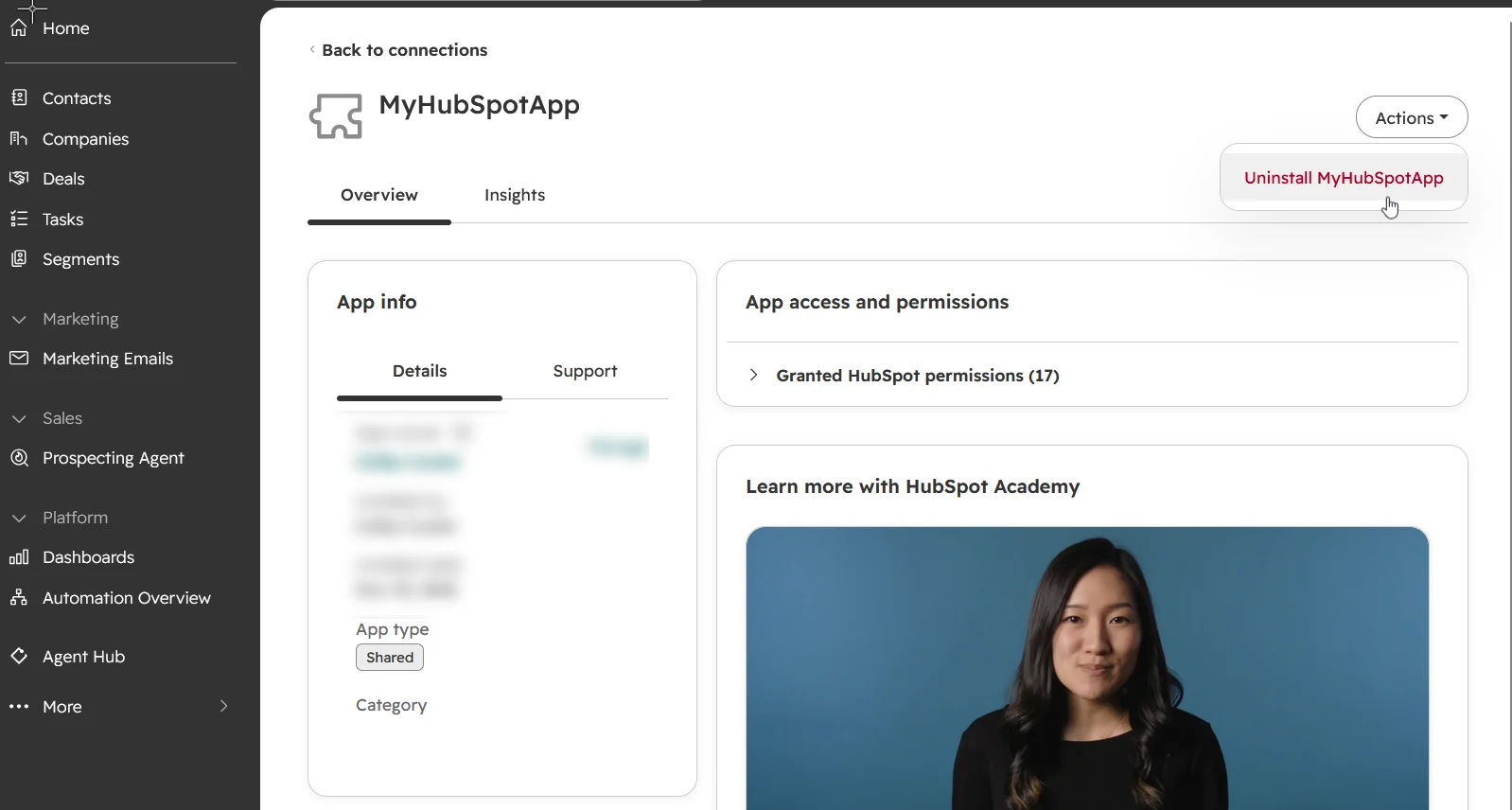
Uninstalling the iCustomer app in HubSpot revokes its access to your account. Do this if you want iCustomer to stop having access entirely.
Uninstalling does not delete data iCustomer already wrote to HubSpot, but that data stops updating.
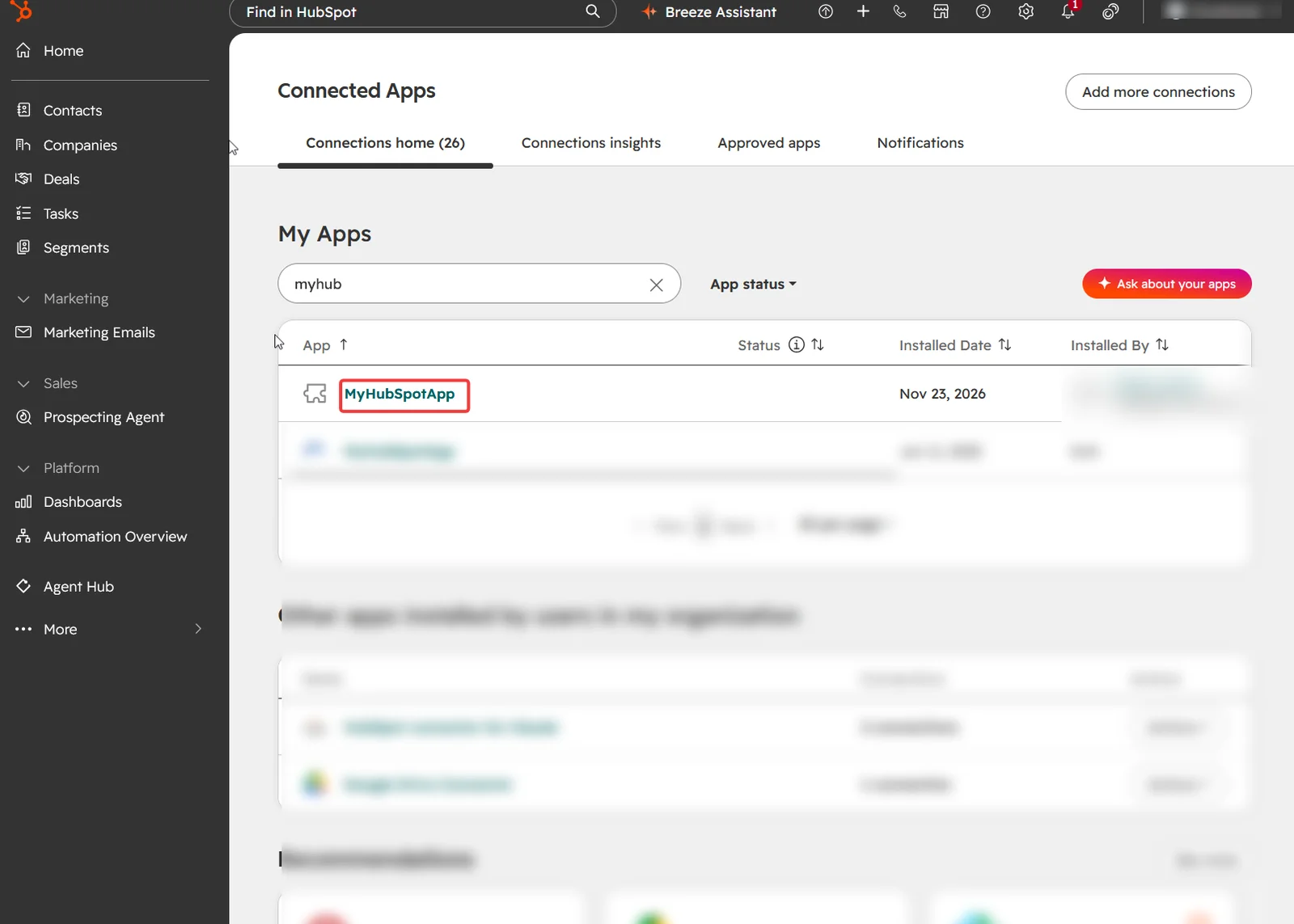
Step 1. Open Connected apps in HubSpot
In HubSpot, go to Settings, then Integrations, then Connected apps. Open the iCustomer app, then open the Actions menu and select Uninstall.
Step 2. Confirm
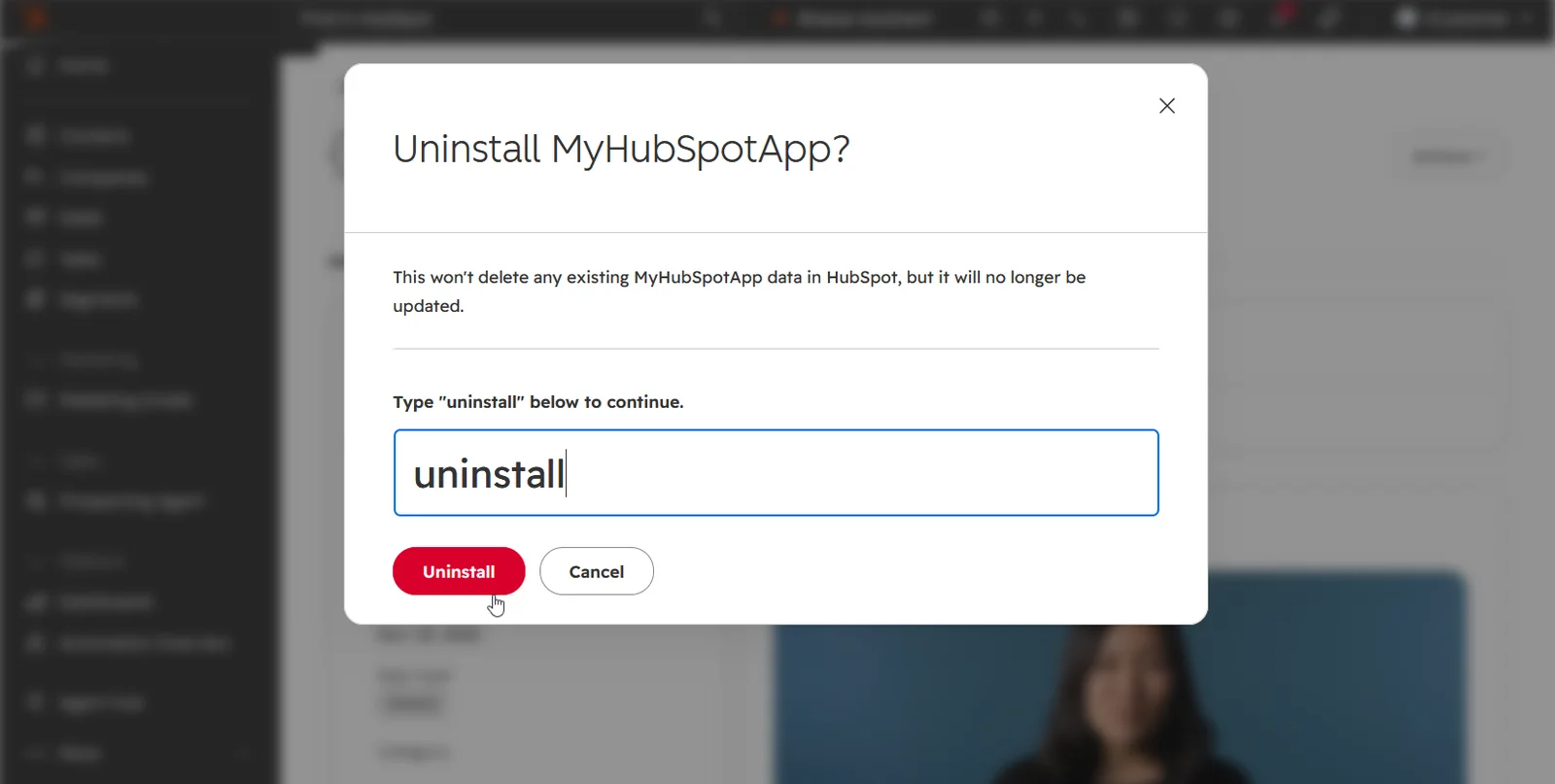
Type uninstall to confirm, then select Uninstall.
Support
Questions or trouble connecting? Email support@icustomer.ai.